
Laser cut
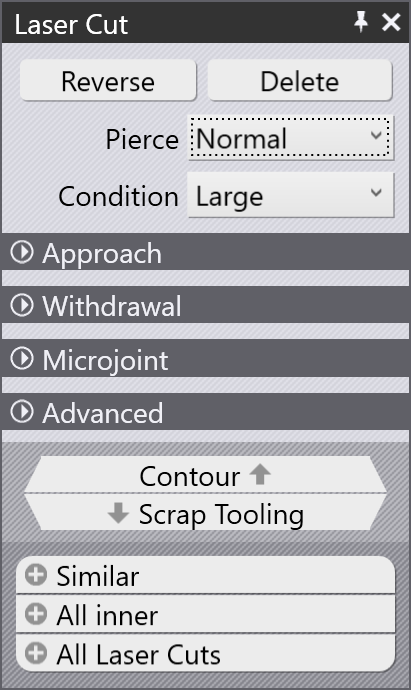
After a part has been tooled up, clicking on a laser cut brings up the Laser Cut panel.
Editing the laser cut
-
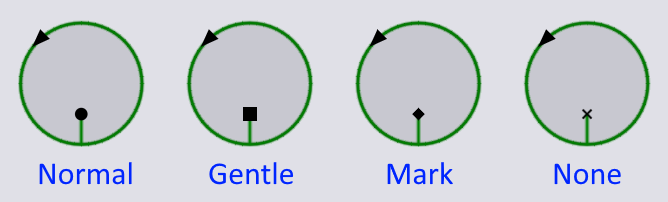
Pierce: Used to select a piercing type from one of the pierce types available for this machine. Depending on the pierce type selected, different pierce icons are displayed.
-
Condition: Select from the cutting conditions available in the currently selected LTT (Laser Technology Table). Depending on the cutting condition selected, the laser trace is drawn with different colors.
-
Reverse: Reverses the direction of the cutting.
-
Delete: Delete this tooling. The shape is then colored differently to warn that it is not being processed[1].
Other sections
In addition to these settings, the Laser Cut panel contains several sections that are collapsed, but can be expanded by clicking on them:
These sections are explained in separate pages.
Selection and navigation
-
Contour: Navigates to the contour that contains this laser cut, and opens the contour panel.
-
Scrap Tooling: This button (which is visible only if this laser cutting is for a hole that has been scrap-cut) brings up the scrap cut panel.
-
Similar: Selects all similar laser cuts (laser cuts that are cutting out identical holes of the same shape and size), even ones that are oriented differently from this one.
-
All inner: Selects All inner cuts (laser cuts on inner holes, as opposed to the outer perimeter).
-
All Laser Cuts: Selects all laser tooling on the part.