
Flux Reference Manual

  • Welcome to Flux
  • Introduction
    • Installing the software
    • The user interface
    • Part workflow
  • CAD
    • 2-D Import
      • 2-D Cleanup
    • 3-D Import
      • Import 3D Model
      • Import assembly
      • Form detection
      • Component detection
    • Modifying the geometry
    • Attachments
  • Laser CAM
    • Part workflow
      • Editing panels
        • Laser cut
          • Approach
          • Withdrawal
          • Microjoint
          • Advanced
        • Contour
        • Scrap cut
        • Part
        • Corner treatment
      • Quick-Nest
    • Job workflow
      • Job panel
        • Sheets tab
        • Parts tab
        • Layouts tab
        • Summary tab
      • Edit layout
        • Nesting modes
        • Placement panel
        • Sequencing
        • Slice sheet
    • Bevel cut
      • Open contours
      • Variable bevel
      • Miscellaneous
    • Advanced
      • Finishing rules
      • Edit LTT
      • FlyLine
      • TwinLine
        • Strategy
        • Microjoints
        • Further settings
      • DetectLine
  • Bend CAM
    • Create bend data
    • Bend navigator
    • Edit bend data
      • Edit a bend
      • Edit a tool mount
      • Edit a bend setup
      • Edit the back-gauges
      • Edit angle measurement
      • Bends spreadsheet
      • Changing the sequence
      • Adding setups and stations
    • Advanced
      • Angle measurement
      • Batch process
      • Recompute solution
      • Tonnage check
    • Bending Aids
  • BendMaster CAM
    • Bend navigator
    • Part pickup
      • Pickup from pallet
      • Pickup from dispenser
    • Robotic bending
      • Insertion
      • Bending
      • Extraction
    • Regripping
      • Regrip panel
      • Add regrip
      • Edit regrip
      • Regrip with jaw
      • RG-Stations panel
    • Part deposit
      • Deposit panel
      • Repeat and sequence
      • Add separator sheets
      • Lock part-rest
      • Deposit pattern types
    • Advanced
      • Waypoints
      • Cell configuration
      • Custom Cell Components
      • Gripper database
        • Create a gripper
        • Import gripper from DXF
        • Import Suction Cup
  • FlexCell CAM
    • Bend navigator
    • Part pickup
      • Pickup from pallet
      • Centering table
    • Robotic bending
      • Insertion
      • Bending
      • Extraction
      • Advanced
    • Regripping
      • Regrip panel
      • Add/Remove regrip
      • Gripper Panel
      • RG-Stations panel
    • Part deposit
      • Deposit panel
      • Deposit Tabs
    • Advanced
      • Waypoints
      • Cell configuration
      • Gripper database
        • Create a gripper
        • Import gripper from DXF
    • Troubleshooting
  • Fold CAM
    • Create fold data
    • The Fold view
    • Editing Fold data
      • Edit a bend
      • Edit a side/section
      • Change the sequence
      • Edit the blank-holders
      • Edit the gauging
      • Edit the blades
      • Edit the loading
      • Edit the unloading
    • Tool inventory
    • Advanced
      • Custom air-gap tables
      • Manual bend completion
      • Required flange length
  • Settings
    • Drawing
      • Layers
      • Dimensions
      • View
    • Bend CAM
      • Machine defaults
      • Bend outputs
      • Bend view
      • Bend cell
    • Cut CAM
      • Layout
        • Nest settings
        • Sheet
        • Sheet handling
        • Skeleton cuts
        • Work support
      • Laser CAM
        • Sequence
      • Cut outputs
      • Cut view
    • Panel bending
      • Defaults
      • ZBW carriers
      • Outputs
    • Reports
      • Item defaults
    • Import/Export
    • Environment
  • Database
    • Materials
    • Machines
    • Bend tools
    • Bend deductions
    • Bend grippers
    • Forms and Components
  • Reports
    • Report designer
    • Fields, pictures and tables
    • Bands (sub-reports)
    • Labels, bitmaps and shapes
  • Appendix
    • Supported 3D formats
    • Separator sheet DXF
    • Bend tool DXF
    • The Adapt Geometry feature
Introduction
/
Installing the software

Installing the software

Preparing to install

System requirements

  • One of the following operating systems. Note that Windows 7 requires Service Pack 1 to be installed, otherwise Flux cannot work on Windows 7.

    • Windows 7 SP1, 64-bit (Windows 7 SP1 is supported with Extended Security Updates installed)

    • Windows 8.1, 64-bit

    • Windows 10, 64-bit

    • Windows 11, 64-bit

  • 8 GB RAM (16 GB recommended)

  • 1024 x 768 screen resolution (1920 x 1080 recommended)

  • Graphics card with OpenGL 4.0 support (Nvidia discrete GPU recommended)

  • 3-button mouse or trackball

Pre-requisite software

The following pre-requisite software is required, and will be installed by the Flux installer automatically, if it is not found:

  • Visual C++ 2005 SP1 Redistributable (x86)

  • Visual C++ 2010 SP1 Redistributable (x86)

  • Visual C++ 2013 Redistributable (x64) - only on 64-bit platforms

  • Visual C++ 2019 Redistributable (x64) - only on 64-bit platforms

  • Microsoft .Net Framework 4.7.2

  • Microsoft .Net 6.0.1

Installing the software
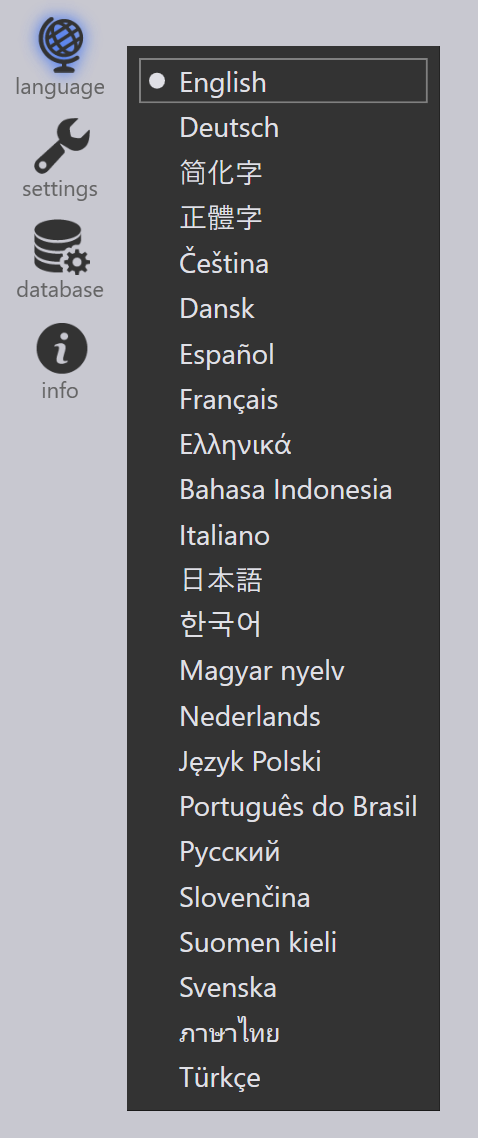
Pick Language

Run FluxSetup.exe (the exact filename may be different, and may include the revision number or date). If the pre-requisites (such as the .Net Framework) are not already installed, installation may take up to 15 minutes to complete. If the pre-requisites are already installed, installation should take about 1 or 2 minutes.

Follow the instructions to install Flux. This install process will place a short-cut to the Flux application on your desktop, and in the start menu. You can also start the application by running the Flux.exe program directly.

Running Flux

When you run Flux for the first time, a language selector pops up and you can select the language used for Flux. (Depending on your installation, you may see a different set of languages here).

The language you choose here is used for Flux, and this can subsequently be changed by clicking on the Language on the command bar. (This icon appears when you start Flux, and when you have had no parts open).

Contents

  • Preparing to install
  • System requirements
  • Pre-requisite software
  • Installing the software
  • Running Flux
Introduction The user interface

      Copyright © 2025 TRUMPF Metamation. All rights reserved.

    Compiled by Bento