
Flux Reference Manual

  • Welcome to Flux
  • Introduction
    • Installing the software
    • The user interface
    • Part workflow
  • CAD
    • 2-D Import
      • 2-D Cleanup
    • 3-D Import
      • Import 3D Model
      • Import assembly
      • Form detection
      • Component detection
    • Modifying the geometry
    • Attachments
  • Cut CAM
    • Part workflow
      • Editing panels
        • Laser cut
          • Approach
          • Withdrawal
          • Microjoint
          • Advanced
        • Contour
        • Scrap cut
        • Part
        • Corner treatment
      • Quick-Nest
    • Job workflow
      • Job panel
        • Sheets tab
        • Parts tab
        • Layouts tab
        • Summary tab
      • Edit layout
        • Nesting modes
        • Placement panel
        • Sequencing
        • Slice sheet
    • Bevel cut
      • Open contours
      • Variable bevel
      • Miscellaneous
    • Advanced
      • Finishing rules
      • Edit LTT
      • FlyLine
      • TwinLine
        • Strategy
        • Microjoints
        • Further settings
      • DetectLine
  • Bend CAM
    • Create bend data
    • Bend navigator
    • Edit bend data
      • Edit a bend
      • Edit a tool mount
      • Edit a bend setup
      • Edit the back-gauges
      • Edit angle measurement
      • Bends spreadsheet
      • Changing the sequence
      • Adding setups and stations
    • Advanced
      • Angle measurement
      • Batch process
      • Recompute solution
      • Tonnage check
    • Bending Aids
  • BendMaster CAM
    • Bend navigator
    • Part pickup
      • Pickup from pallet
      • Pickup from dispenser
    • Robotic bending
      • Insertion
      • Bending
      • Extraction
    • Regripping
      • Regrip panel
      • Add regrip
      • Edit regrip
      • Regrip with jaw
      • RG-Stations panel
    • Part deposit
      • Deposit pattern types
      • Deposit tabs
      • Add separator sheets
      • Lock part-rest
    • Advanced
      • Waypoints
      • Cell configuration
      • Custom Cell Components
      • Gripper database
        • Create a gripper
        • Import gripper from DXF
        • Import Suction Cup
  • Flex Cell CAM
    • Bend navigator
    • Part pickup
      • Pickup from pallet
      • Centering table
    • Robotic bending
      • Strategy panel
    • Regripping
      • Regrip panel
      • Add/Remove regrip
      • Gripper Panel
      • Double Sheet Station
    • Part deposit
      • Deposit Tabs
    • Advanced
      • Waypoints
    • Troubleshooting
  • Fold CAM
    • Create fold data
    • The Fold view
    • Editing Fold data
      • Edit a bend
      • Edit a side/section
      • Change the sequence
      • Edit the blank-holders
      • Edit the gauging
      • Edit the blades
      • Edit the loading
      • Edit the unloading
    • Tool inventory
    • Advanced
      • Custom air-gap tables
      • Manual bend completion
      • Required flange length
  • Settings
    • Drawing
      • Layers
      • Dimensions
      • View
    • Bend CAM
      • Machine defaults
      • Bend outputs
      • Bend view
      • Bend cell
    • Cut settings
      • Cut CAM
      • Layout
        • Nest settings
        • Sheet
        • Sheet handling
        • Skeleton cuts
        • Work support
      • Laser CAM
        • Sequence
      • Cut outputs
      • Cut view
    • Panel bending
      • Defaults
      • ZBW carriers
      • Outputs
    • Reports
      • Item defaults
    • Import/Export
    • Environment
  • Database
    • Materials
    • Machines
    • Bend tools
    • Bend deductions
    • Bend grippers
    • Forms and Components
  • Reports
    • Report designer
    • Fields, pictures and tables
    • Bands (sub-reports)
    • Labels, bitmaps and shapes
  • Appendix
    • Supported 3D formats
    • Separator sheet DXF
    • Bend tool DXF
    • The Adapt Geometry feature
Flex Cell CAM
/
Part pickup
/
Centering table

Centering table

Once the part picked from the Pickup Pallet is positioned on the Centering table, the Combi gripper uses its jaw-type feature to take the part from the Centering table for bending and then deposition.

The panels below cover all the settings for the centering operation.

Pallet panel
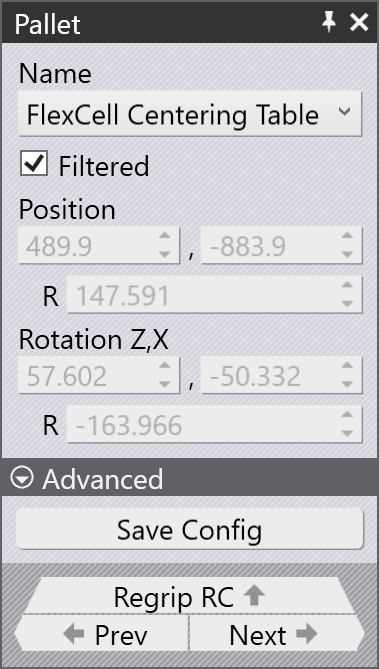
Pallet

The Pallet panel will be open when you directly click on the centering table component. This panel is used to select a Centering table and position it in the cell.

  • Name: Lists pallets compatible with the current blank. To see all available pallets, clear the Filtered checkbox.

  • Position (Z, X, R): These fields display the pallet’s position in the machine coordinate system. These fields are not editable, as the pallet position is preset.

  • Rotation (Z, X, R): These fields display the pallet’s rotation in the machine coordinate system. These fields are not editable, as the pallet rotation is preset.

  • Save Config: Click the Advanced dropdown to view this option. Saves the current cell configuration as the default for this machine.

  • Prev / Next: Navigate to the previous or next pallet in the cell.

  • Regrip RC: Opens the Regrip RC panel where regrip operations can be edited.

Regrip RC panel
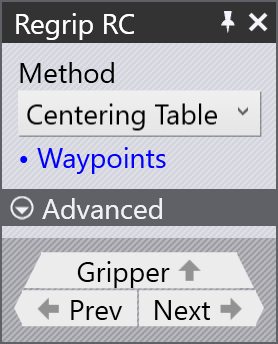
RegripRCPanel

The Regrip RC panel is used to configure regrip operations for the centering table. Click RC on the navigation bar to open the Regrip RC panel.

  • Method: This specifies the method used for the regrip operation on the centering table.

  • Waypoints: Opens the Waypoints panel.

  • Gripper: Opens the Gripper panel to configure the gripper used in centering operations.

Part panel
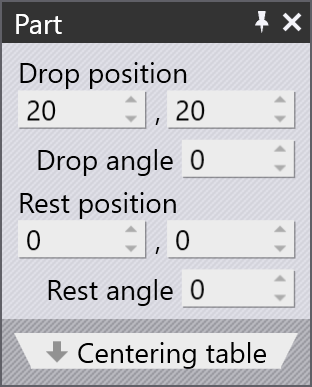
Part

The Part panel is used to edit the part position on the centering table. Click the part on the centering table to open this panel.

  • Drop position (Z,X): This specifies the position where the gripper releases the part on the centering table.

  • Drop angle: This specifies the rotation angle of the part when it is released by the gripper on the centering table.

  • Rest position (Z,X): This specifies the position where the gripper places the part when it is at rest on the centering table.

  • Rest angle: This specifies the rotation angle of the part when it is at rest on the centering table.

  • Centering table: Opens the Centering table panel where the centering table operations can be configured.

Gripper panel
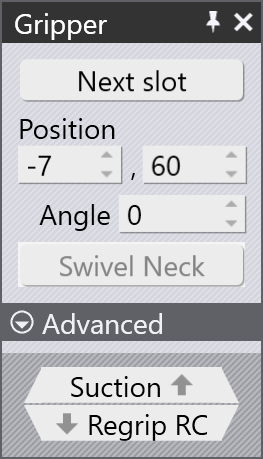
Gripper

The Gripper panel is used to select a different gripper, or to change the position and orientation at which the gripper picks up the part.

  • Use the Next slot to select a different pickup slot on the centering table. Note that there are only 2 pickup slots in the centering table so, Next slot alternates pickup between these two pickup slots.

  • Use the Position inputs to adjust the position of the gripper in X and Y to pick up the part from the slot.

  • Use the Angle input to rotate the gripper around the slot to pick up the part at a different angle.

Suction panel
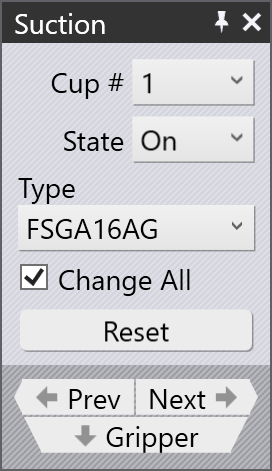
CentringSuction

Use the Suction panel to configure the suction cup layout of a gripper. Click any suction cup to open this panel, or use the Suction link in the Gripper panel.

  • Cup #: Selects a suction cup to edit.

  • State: Sets each cup to On or Removed.

    • On: Default state. Cup is connected to the vacuum line and contributes to lift.

    • Removed: Cup is physically removed from the frame. There will be no lift from this cup and no collision occurs. It is useful when a cup falls over a formed feature or collides with the die.

  • Type: Changes the suction cup type. By default all cups change together; clear Change All to change individual cups.

    All cups on a gripper frame must share the same working height.
  • Reset: Restores all cups to their default type and turns them all on.

  • Prev / Next: Navigate to the previous or next cup. The selected cup is highlighted in blue

  • Gripper: Opens the Gripper panel.

Contents

  • Pallet panel
  • Regrip RC panel
  • Part panel
  • Gripper panel
  • Suction panel
Pickup from pallet Robotic bending

      Copyright © 2026 TRUMPF Metamation. All rights reserved.

    Compiled by Bento