
Gripper Panel
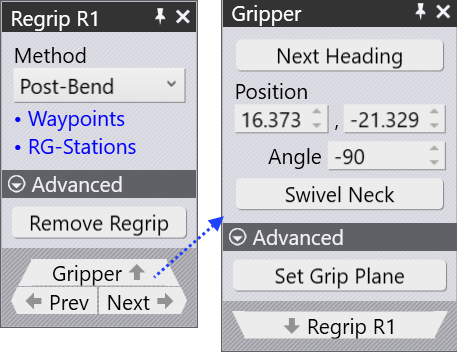
After regripping, the final position of the gripper can still be adjusted using the Gripper panel. This position is then retained for the upcoming bending process.
To open and edit the Gripper panel during a regrip operation:
-
In the navigator, double-click the regrip number to open the Regrip panel.
-
Click Gripper in the Regrip panel to navigate to the Gripper panel.
-
Alternatively, you can directly click the gripper component at the regrip position.
Edit gripper panel
-
Use the Next Heading button to rotate the gripper around to another side of the part (it rotates in 90° steps).
-
Use the Position and Angle field to change the position and orientation of the gripper over a part.
-
Use the Swivel Neck option to rotate the Jaw Neck with 180° rotation.
-
Use the Set Grip Plane to select a different plane to grip. When this option is selected, the mouse pointer will change to a blue color plus symbol. Hover around to see the plus symbol showing different plane orientation and select a desired plane.
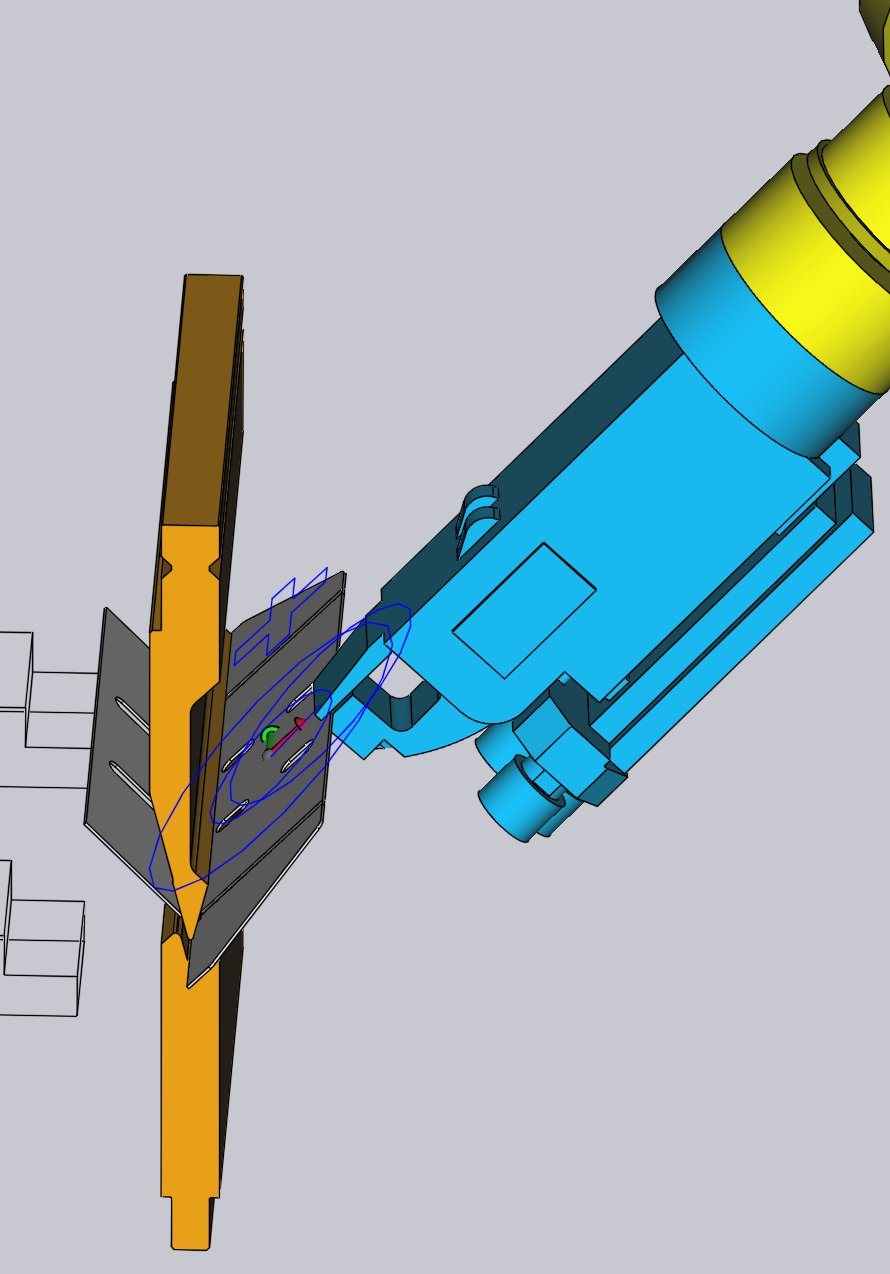
The gripper will snap to the selected plane, and the gripper position and orientation will be updated accordingly.
As you make these changes, FlexCell CAM will compute a routing path for the gripper to go around the part and pick it up from the other side. All subsequent bends will also have their collision status updated immediately, so you can see whether the new regrip position you have chosen is acceptable.